User guides › Your setup › Workspaces
Workspaces
A workspace is a whole setup of charts that saves itself: tabs, layouts, indicators, drawings, alerts, its own theme and settings, and where you were looking.
On this page
What it coversSwitching, creating, duplicating, exporting, importing, renaming, resetting and deleting workspaces.
Where to find itThe workspace button at the far left of the tab bar.
The workspace menu
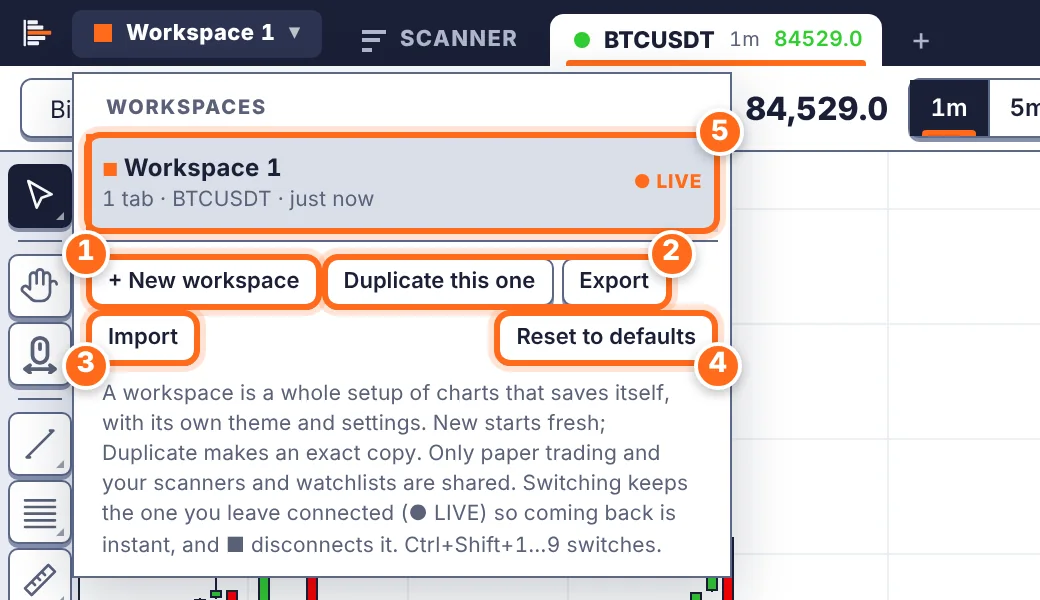
- + New workspace.
- Duplicate this one and Export.
- Import a .workspace.json file.
- Reset to defaults.
- A workspace in the list: its name, how many tabs, its coins and when you last used it. ● LIVE means its charts are connected.
Switch workspaces
- Click the workspace button at the far left of the tab bar.
- Click a workspace in the list.
- Or press Ctrl + Shift + 1 to 9 for workspace 1 to 9.
- Switching keeps the workspace you leave connected (● LIVE), so coming back is instant. Click ■ next to it to disconnect its charts and free up the computer.
Make, copy and share
| Button | What it does |
|---|---|
| + New workspace | Starts fresh: one empty chart and the platform defaults, with nothing carried over. |
| Duplicate this one | An exact copy of the open workspace, settings included. After that the two are separate. Alerts aren't copied. |
| Export | Saves the open workspace as a .workspace.json file. |
| Import | Loads a .workspace.json file as a new workspace, for example one you exported on another computer. |
| ✎ | Rename a workspace. Press Enter to finish. |
| Arrows | Move a workspace up or down the list. The order sets which Ctrl + Shift number opens it. |
| ⧉ | Windows app: open the workspace in its own window, for a second screen. It shows ⧉ WINDOW while it's open. |
Delete or reset
- Click × next to a workspace to delete it. It asks once, and it's permanent. Its alerts go with it.
- Reset to defaults puts the open workspace back to a fresh start: one empty chart, with its settings and alerts reset. Other workspaces aren't touched.
Watch outExport a workspace before you delete or reset it if you might want it back.
What's shared and what isn't
| What | |
|---|---|
| Each workspace has its own | Tabs and chart groups, coins and timeframes, indicators and their settings, drawings, alerts, theme, and where each chart was scrolled to. |
| Shared by every workspace | Your paper trading account, and your scanners and watchlists. |
Good to knowAlerts keep firing while another workspace is open. Everything saves itself on your computer as you go, so there's no Save button.
Questions
How many workspaces can I have?
Free has 1. Premium has the maximum, with up to 50 charts in each.
Can I move my setup to another computer?
Yes. Export it, copy the file across, and Import it on the other computer.
Do workspaces use more memory?
Only while they're connected. Click ■ to disconnect a workspace you're not using.
Related guides
Still stuck? Email support@cryptoflowcharts.com and we'll help, usually within a day.