
Positions
Positions shows who is opening and closing positions on each candle: longs above the line, shorts below, with the dollar amount for every candle, updating live.
On this page
How to read it
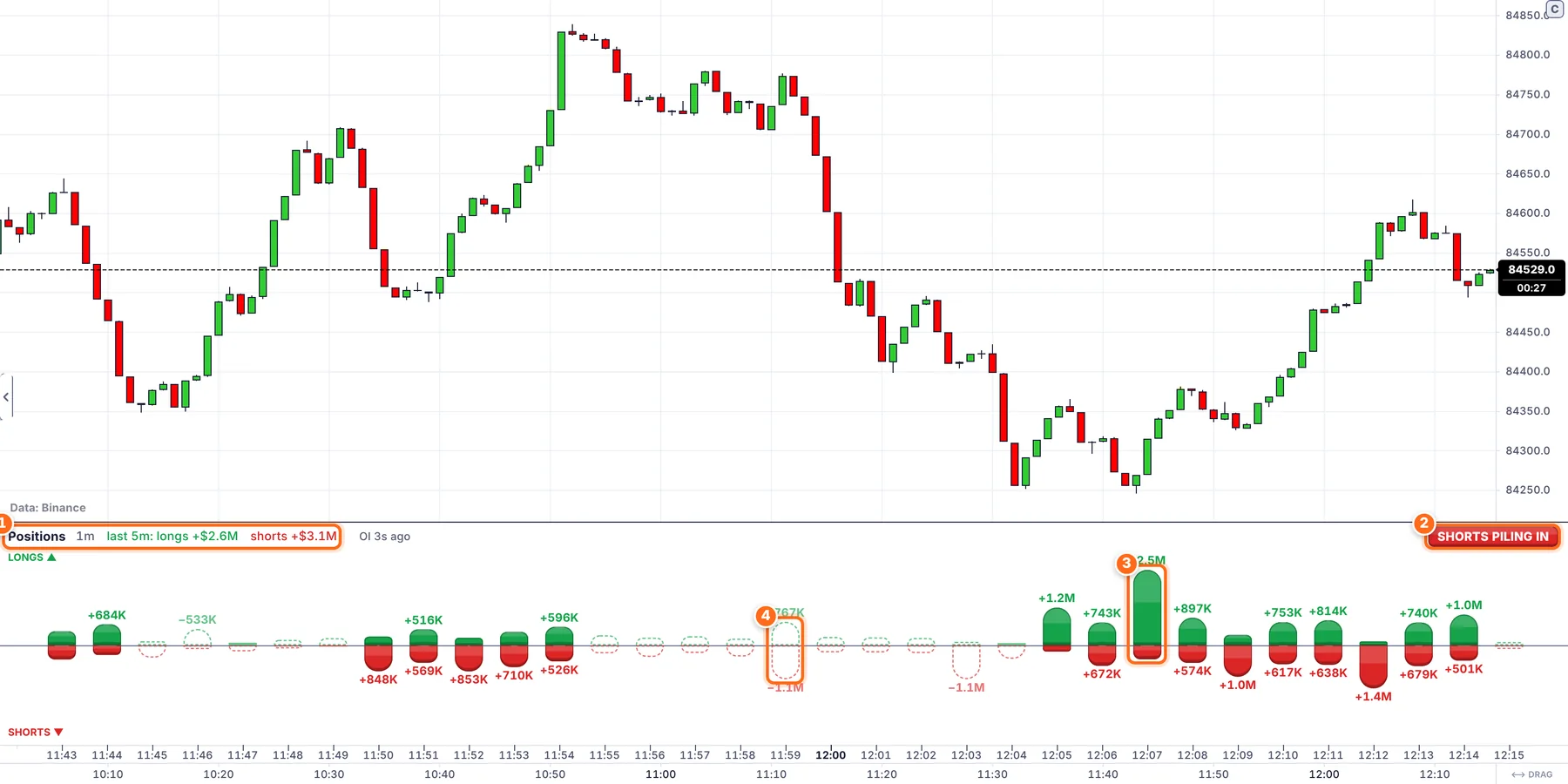
- The header adds up the last few minutes.
- The verdict in words, for example SHORTS PILING IN.
- A solid bar: positions opened (new money in).
- A dashed bar: positions closed (money leaving).
Above the line are longs, below are shorts. A solid bar means positions were opened; a dashed bar means positions were closed. The $ amount is for that candle.
It combines open interest (are positions being opened or closed?) with who was aggressive (market buys or market sells).
- Green candles with big solid bars above: new longs driving the move (real buying).
- Green candles with dashed bars below: shorts closing, often a squeeze, which tends to be short-lived.
- Red candles with solid bars below: new shorts pressing.
- Red candles with dashed bars above: longs bailing out.
The header verdict reads LONGS PILING IN, SHORTS SQUEEZED, LONGS BAILING, SHORTS PILING IN or QUIET.
Turn it on
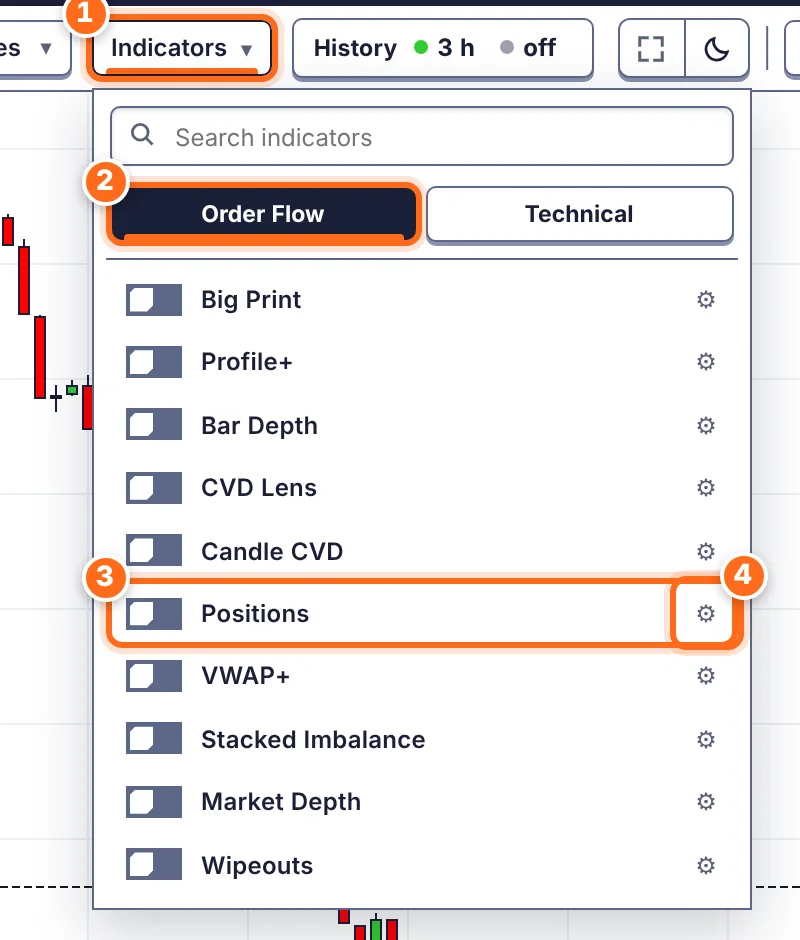
- Indicators ▾ in the toolbar.
- The Order Flow tab.
- The Positions row: the switch turns it on or off.
- The ⚙ opens its settings.
- Click Indicators ▾ in the toolbar.
- Stay on the Order Flow tab, or type positions in the search box.
- Click the switch next to Positions. It draws on the chart straight away.
- Click the ⚙ on the same row to open its settings.
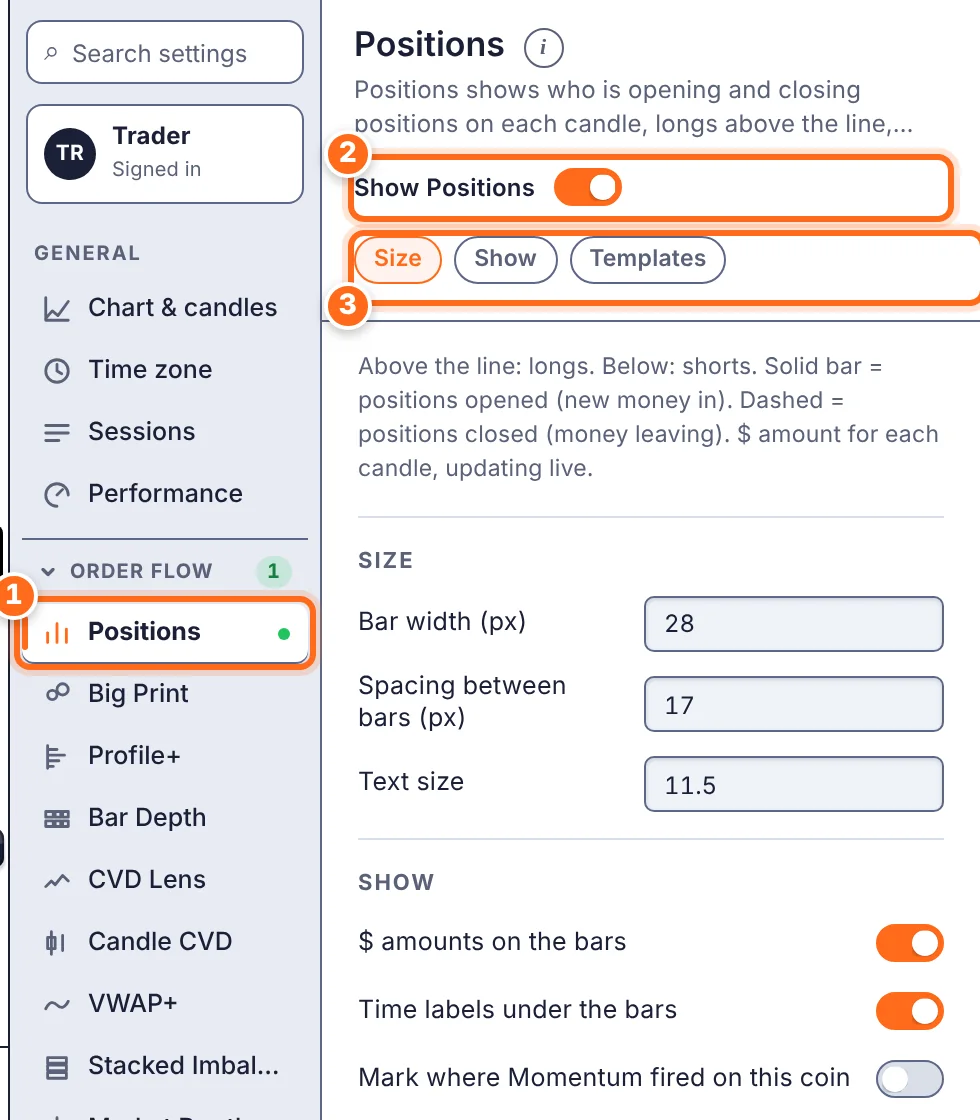
- Positions in the settings menu. The green dot means it's on for this chart.
- Show on chart (and Layer, where the tool has one: normal, behind the candles or over everything).
- Jump straight to a section of its settings.
Positions is switched on per chart tab, so each chart can have its own tools.
Move around it
- Drag the panel sideways to go back in time.
- Double-click it to return to the live candle.
Move panel up / down in its settings change its order among the panels under the chart.
Settings
| Setting | What it does |
|---|---|
| Size | |
| Bar width · Spacing between bars · Text size | Size of the bars and their labels. |
| Show | |
| $ amounts on the bars | The dollar amount on each bar. |
| Time labels under the bars | Times along the bottom. |
| Mark where Momentum fired on this coin | Marks candles where the Momentum scanner fired for this coin. |
| Templates | |
| Save as template · Load | Save your setup under a name and load it on any chart. Every order-flow tool has templates at the bottom of its settings. |
How it's worked out
Exchanges publish only the total open interest, not who holds it, so the long / short split is an estimate from who was aggressive (market buys vs market sells) while open interest changed. Older candles use the exchange's 5-minute open-interest history; while the chart is open, open interest is read every 3 seconds and the live candle moves with every trade in between.
Questions
Why is the panel empty?
The chart is spot, Hyperliquid or range bars, which have no usable open interest here. Switch to a perp on Binance, Bybit, OKX or Bitget.
Are the long / short numbers exact?
No. Exchanges only publish total open interest, so the split is an estimate from aggressive buying and selling. The opened / closed direction is reliable; the exact split is a best estimate.