
Moving around a chart
Everything you can do with the mouse on a chart: scroll through time, zoom, stretch prices, move freely and get straight back to the live candle.
On this page
The parts you can drag and click
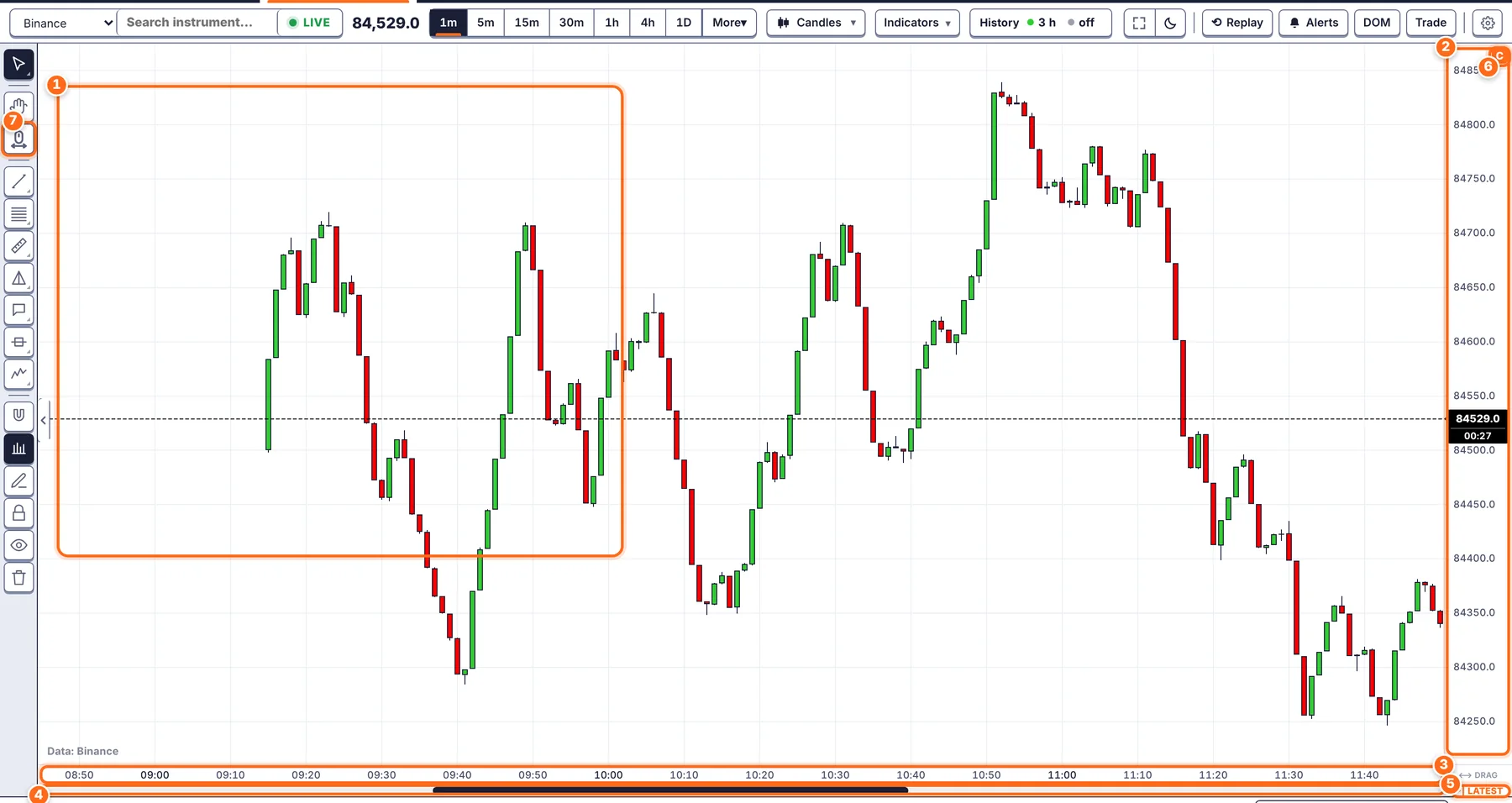
- Drag the chart to scroll through time. Hold Ctrl and drag to move freely, up and down too.
- Drag the price axis up or down to stretch or squeeze prices.
- Drag the time axis to make candles wider or narrower.
- The scrollbar moves through everything that's loaded.
- ▶| LATEST jumps back to the newest candle.
- C centres on the live price. It turns orange when the live price is off screen.
- The mouse wheel button on the drawing toolbar: makes the wheel zoom instead of scroll.
Mouse and keys
| Do this | What happens |
|---|---|
| Scroll and zoom | |
| Drag the chart | Scroll back and forward in time. |
| Mouse wheel | Scrolls through time. Turn on the mouse wheel button on the drawing toolbar to make it zoom instead. |
| Ctrl + wheel | Does the other one: zooms if the wheel scrolls, scrolls if the wheel zooms. Zooming keeps the candle under your mouse in place. |
| Drag the time axis | Widen or squeeze candles. Double-click it to go back to the normal width. |
| Move freely | |
| Ctrl + drag | Move the chart in any direction, up and down as well as sideways. |
| Grab hand | On the drawing toolbar. While it's on, a plain drag moves freely without holding Ctrl. |
| Drag the price axis | Stretch or squeeze prices. Once you do, the chart stops fitting itself to the candles. |
| Get back | |
| Double-click the chart | Fits prices to the candles again and jumps to the newest candle. |
| ▶| LATEST, or double-click the scrollbar | Back to the newest candle. |
| C button | Centre on the live price, keeping your zoom. |
| Right-click → Reset chart view | Fits the chart and goes back to the newest candle. |
| F, or the full screen button | Full screen. Press F again to leave. |
The right-click menu
Right-click the chart for quick actions. What you see depends on what's under the mouse.
| Right-click on | You get |
|---|---|
| Empty chart | Reset chart view, Chart settings…, Add alert at that price, Add order flow alert…, a paper buy or sell limit and stop at that price, and Replay from here (Premium). |
| A drawing | Bring to front, Bring forward, Send backward, Send to back, Settings…, Clone, Lock, Hide, Delete and Add alert on this drawing. |
| Candles or an order-flow tool | Change its layer (front, back or Normal order), open its settings, or hide it. |
| A panel under the chart | Its settings, Move panel up or down, and remove it. |
The drawing toolbar
The toolbar down the left holds the cursor, the grab hand, the mouse wheel button, every drawing tool, the magnet, lock, hide and remove. Click the small ‹ on its edge to hide it and give the chart more room; click again to bring it back.
Everything about drawing is in Drawing tools, and every key is in Keyboard shortcuts.
Questions
My chart is stuck zoomed in on prices. How do I fix it?
Double-click the chart, or right-click and pick Reset chart view. Prices fit the candles again.
Can the wheel zoom instead of scroll?
Yes. Click the mouse wheel button on the drawing toolbar (under the grab hand). Each chart remembers its own choice. Hold Ctrl for the other behaviour at any time.
On a Mac, what replaces Ctrl?
Use ⌘ wherever this guide says Ctrl.