Watchlists & Scanner
The Scanner checks every market on the exchanges you pick and shows them in one table you shape yourself. Watchlists keep your own coins live in the same table.
On this page
The Scanner page
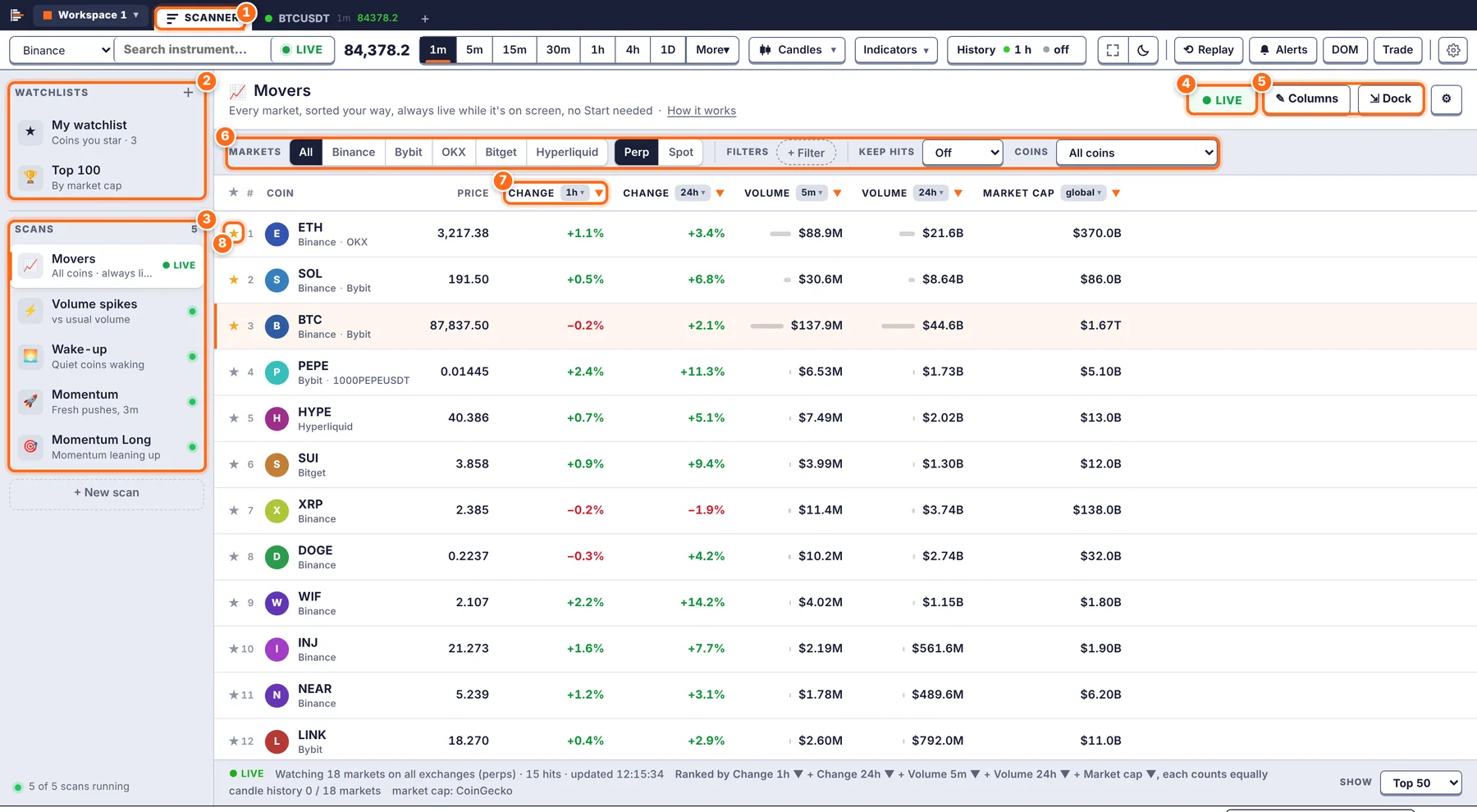
- The SCANNER tab, always first in the tab bar.
- Watchlists: My watchlist (the coins you star), the Top 100 by market cap and your own lists. + makes a new list.
- Scans: Movers and your own on every plan; Volume spikes, Wake-up, Momentum and Momentum Long with Premium. A green dot means it's running.
- ● LIVE on watchlists and Movers; ▶ Start / ■ Stop on the other scans.
- Columns edits the columns, Dock keeps this scan beside your chart, and ⚙ has this scan's settings.
- The filter bar: Markets (exchanges, Perp or Spot), Filters, Keep hits and Coins.
- Click a column name to rank by it; ▾ changes its time window.
- Click ★ to add a coin to your watchlist.
The strip along the bottom shows how many markets are being watched, how many pass, when it last updated and what it's ranked by. SHOW sets how many rows you see.
Read the table
Each column is one number per coin, over a time window you choose: Change %, Volume, Volume vs usual, Range, Market cap and more.
- Click a column name to rank by it. Each click moves on: ▼ highest first, ▲ lowest first, ⇕ biggest move either way (Change columns only), then not ranked.
- Rank by several columns and they count equally.
- Volume columns show a small bar so you can compare at a glance.
- Under each coin are the exchanges it's on.
Open a coin
- Watchlists and Movers: click a coin and pick the exchange. Only exchanges that list it show, with their price. Click one to open it in the current chart, or ⧉ for a new tab.
- Other scans: click a coin to open it in the current chart.
- Right-click any coin for Open in this chart, Open in a new chart tab, and add it to (or remove it from) a list.
Watchlists
Watchlists are your own coin lists. They're always live while they're on screen, with no Start needed.
- Click + next to WATCHLISTS to make a new list, or use My watchlist.
- Click + Add coins, search any coin on the five exchanges and click ☆ Add. Or click ★ on a coin in any scan.
- Drag coins to put the list in your own order. Ranking a column sorts by it instead; turn ranking off to get your order back.
- Columns on a watchlist: Price, Market cap, Change % and Volume $.
- Right-click a list on the left to open, rename or delete it.
- Top 100 is the 100 biggest coins by market cap that trade on these exchanges.
The built-in scans
| Scan | What it finds |
|---|---|
| Movers | Every market, ranked your way. Always live, like a watchlist. Free. |
| Volume spikes | Quiet coins suddenly trading far above their normal volume. Catches a coin waking up, not one at the end of a run. |
| Wake-up | Longs only. A quiet crypto perp getting busy with buyers in control. WAKING comes first; it can become IGNITING when the move breaks out. |
| Momentum | Longs only. Coins already moving up that get a fresh push. BUILDING means a push is starting; PUSHING means it's under way. |
| Momentum Long | Only the Momentum hits that look most likely to keep going up. done? means the move may already be over. |
Start and stop a scan
- Click a scan on the left.
- Click ▶ Start. It keeps running in the background, with its alerts, until you stop it, whatever you're looking at.
- Click ■ Stop to stop it. Other scans keep running.
- Scans start switched off each time the app opens. Nothing downloads until you start one.
- Right-click a scan on the left to open, start or stop, rename, duplicate or delete it.
- The bottom of the left side shows how many scans are running.
Scan alerts
While Wake-up, Momentum or Momentum Long is running, each new hit plays your alert sound and shows a pop-up, plus a Windows notification when the app is in the background. A list of recent alerts sits under the scan; click its header to fold it away.
- Wake-up sends a follow-up alert when a coin moves on to IGNITING.
- Momentum sends a follow-up when a coin moves on to PUSHING.
The sound and notifications follow your settings in the Alerts panel.
Shape your own scan
- + New scan makes one from scratch. Duplicate (in ⚙ or the right-click menu) copies one to change.
- Markets: pick exchanges, and Perp or Spot.
- + Filter keeps only coins that pass, for example Volume 5m ≥ $1M. A filter on a measure the table doesn't show adds its column too. Click a filter chip to change it.
- Keep hits holds a find on the list for a while after it cools.
- Coins: All coins, the Top 100 or one of your lists.
- Columns adds or edits a column. Pick its time window from the list or type your own, like 20m or 3h.
| Column | What it shows |
|---|---|
| Change % | How far price moved in the window. |
| Volume | Dollars traded in the window. Can also show as × normal. |
| Volume vs usual | This window against its normal amount (×). |
| Spike score | How unusual that volume is for this market. |
| Hot for | How long volume has been running high. |
| Buy % | Share of the window bought at market (Binance). |
| Side | Buyers against sellers over any window. |
| Open interest | Change in the last 15 minutes. |
| Range % / Range before | How wild price was in the window, and how flat it was before the last few minutes. |
| Volume ÷ market cap % | Money traded against the coin's size. A small coin trading a big share of its value is in play. |
| Market cap | The coin's global value, circulating or fully diluted. |
| Wake-up, Momentum, Long score | The Premium scans' readings, to use in your own scans (Premium). |
Scan settings
Click ⚙ at the top right of a scan or watchlist.
| Setting | What it does |
|---|---|
| This scan | |
| Same coin on several exchanges | Combine into one row, or One row per exchange. |
| Rename, Duplicate, Delete | Manage this scan. |
| ↺ Reset this scan to default | Puts only this scan back. A watchlist keeps your coins. |
| All scans | |
| Candle history for markets trading at least | Short windows need each market's 1-minute candles. Lower this to cover quieter coins, with more to load. |
| Pairs | USDT pairs only, or USDT + USDC. Hyperliquid perps settle in USDC, so they only appear with USDT + USDC. |
Keep it beside your chart
- Open a scan or watchlist and click Dock.
- It sits on the right of your chart. Drag its left edge to make it wider or thinner.
- Click a coin in the dock to open it on the chart beside it.
- The docked Momentum scan always shows each coin's reading in the MOM column: the stage and number when it's hot, the number in grey when it isn't, updating live.
- Click the full-page button in the dock to open the scan on the Scanner page, or close the dock with its ×.
Questions
Why is my scan empty?
It may be off: click ▶ Start. If it's running, the filters may be too strict for the market right now, or it's still loading candle history (the bottom strip shows progress).
Do scans use a lot of data?
Only while they run. Each scan downloads candles for the markets it watches, so stop the ones you aren't using.
Can I get Movers alerts?
Not from Movers itself. For alerts on a coin, set a price or order-flow alert from its chart. See Alerts.