User guides › Scanning & alerts › Alerts
Alerts
Alerts watch the market for you: a price level, a line or zone you've drawn, a big trade, or a burst of liquidations. When one fires you get a pop-up, a sound and a Windows notification.
On this page
What it coversThe four alert types, the alert form, alerts on the chart, the Fired list and notifications.
Where to find itAlerts in the toolbar, Alt + A on a chart, or right-click the chart.
The Alerts panel
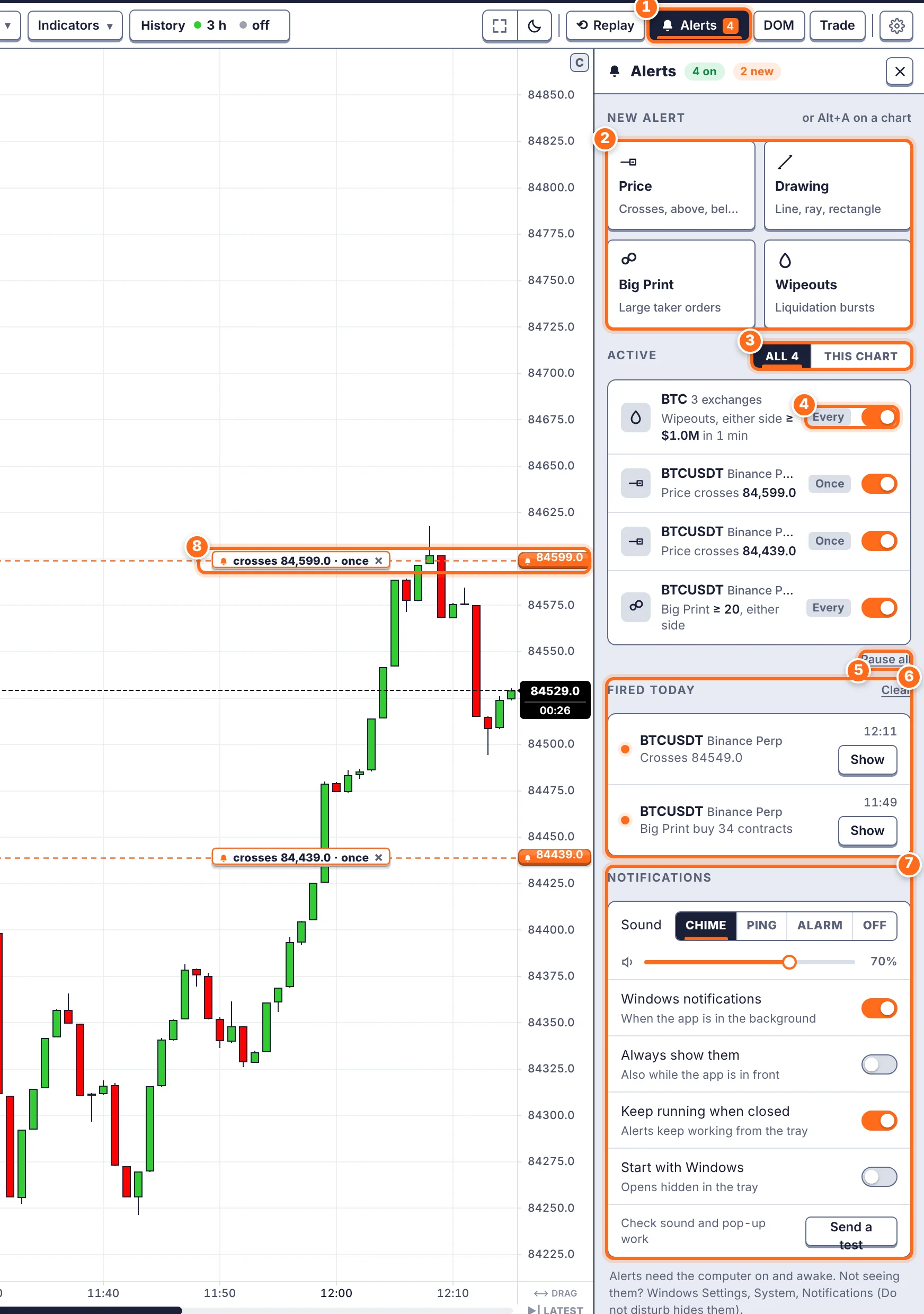
- Alerts in the toolbar opens the panel. The number counts alerts that are switched on, and the button lights up when one has fired since you last looked.
- New alert: Price, Drawing, Big Print or Wipeouts.
- All or This chart: every alert in this workspace, or only this chart's.
- How it fires (Once, Every or Per bar) and its on / off switch. Click the alert to edit it.
- Pause all turns every alert off at once; Resume all turns them back on.
- Fired: what went off and when. Show takes you to that moment on the chart; Clear empties the list.
- Notifications: sound, volume, Windows notifications and, in the Windows app, the tray.
- A price alert on the chart: a dashed line, a tag saying what it watches, and a bell tag on the price axis.
The four kinds of alert
| Alert | Fires when |
|---|---|
| Price | Price crosses a level (either way), crosses up, crosses down, goes above or goes below it. |
| Drawing | Price crosses a horizontal line, horizontal ray, trend line, ray or extended line (any way, up through or down through), or enters or leaves a rectangle. Move the drawing and the alert follows it. |
| Big Print | A single taker order, or an aggregated print, of at least the size you set, in contracts. Pick Either, Buys or Sells. Works whether or not the Big Print tool is on. |
| Wipeouts | Longs, shorts or either liquidated for at least a dollar total within one liquidation, 10 sec, 1 min or 5 min, on the exchanges you tick (Binance, Bybit, OKX). Watches the coin's perps even with no chart open. |
Good to knowBinance only reports its largest liquidation each second, so Wipeouts totals are at least the amount shown.
Create an alert
There are three ways in:
- Alt + A with the mouse over a chart: a price alert at the price under the mouse.
- Right-click the chart: Add alert at that price, or Add order flow alert… for Big Print and Wipeouts. Right-click a line or rectangle for Add alert on this drawing.
- Alerts in the toolbar, then a tile under New alert. For a drawing alert, select the line or rectangle on the chart first.
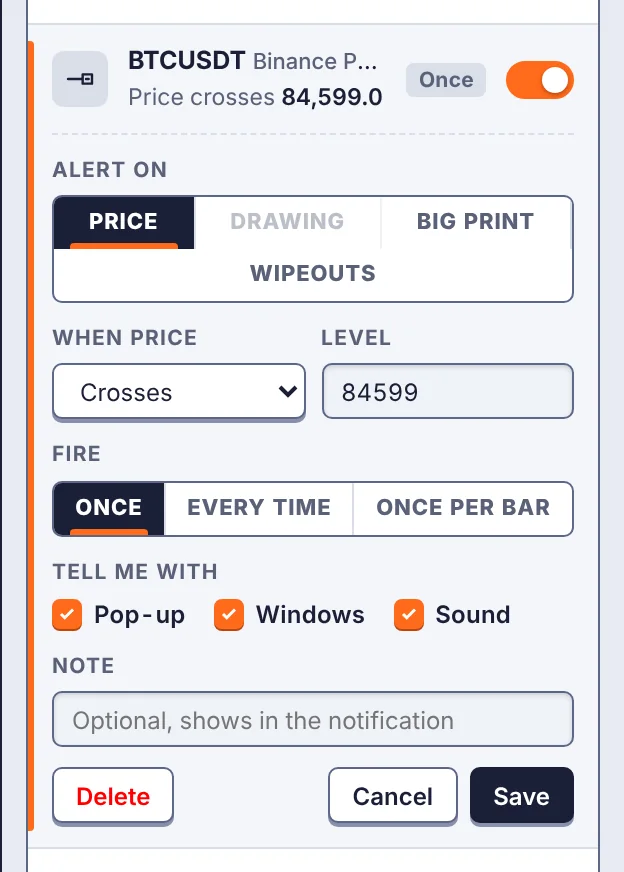
- Check Alert on: Price, Drawing, Big Print or Wipeouts.
- Set the condition: for a price alert, When price and the Level.
- Pick Fire: Once, Every time or Once per bar.
- Under Tell me with, tick Pop-up, Windows and / or Sound.
- Add a Note if you like. It shows in the notification.
- Click Create alert (or Save when editing). Enter saves, Esc cancels.
| Fire | What it means |
|---|---|
| Once | Fires one time, then switches itself off and moves to the Fired list. |
| Every time | Fires each time the condition happens. The default for Big Print and Wipeouts. |
| Once per bar | Fires at most once per candle. |
Alerts on the chart
- Drag a price alert's line or its tag on the price axis to a new level. A moved alert switches on again, ready to fire.
- Click the tag to edit the alert, or × on it to delete it.
- Alerts on drawings show as a small bell beside the drawing. Click the bell to edit.
- A switched-off price alert stays on the chart, faded, until you delete it.
- When you open an alert from a notification or the Fired list, a bell marks the spot on the chart for a minute.
When an alert fires
- A pop-up card appears with Show on chart and Dismiss. It closes by itself after 8 seconds.
- Your alert sound plays.
- A Windows notification shows when the app is in the background (or always, if you turn that on). Click it to bring the app up on that chart.
- Show (in the Fired list) or Show on chart opens the coin, switching workspace or opening a new chart if it has to.
Notification settings
At the bottom of the Alerts panel, under Notifications.
| Setting | What it does |
|---|---|
| Sound | Chime, Ping, Alarm or Off, and the volume. |
| Windows notifications | Show alerts as Windows notifications while the app is in the background. |
| Always show them | Also while the app is in front. |
| Keep running when closed | Windows app: closing the window leaves alerts running from the tray. |
| Start with Windows | Windows app: opens hidden in the tray when you sign in to Windows. |
| Send a test | Plays the sound and shows a test pop-up so you can check everything works. |
Good to knowIn the browser, alerts work while the tab is open. The Windows app keeps them running with the window closed. Either way, the computer needs to be on and awake. Not seeing notifications? Check Windows Settings → System → Notifications; Do not disturb hides them.
Good to know
- Price, drawing and Big Print alerts check every live trade, so they need that coin's chart open somewhere. If it isn't, the alert shows Not live, open a chart.
- Alerts belong to the workspace you made them in. Only that workspace lists them, but they keep firing while another workspace is on screen.
- Deleting or resetting a workspace deletes its alerts.
- Alerts are shared between windows of the Windows app.
- On Free, Wipeouts alerts show Paused, Premium until you upgrade.
- Scanner alerts (Wake-up, Momentum) use the same sound and notifications. See Scan alerts.
Questions
Why didn't my alert fire?
Check that it's switched on, that the coin's chart is open and live, that the computer was awake, and that Windows notifications aren't blocked by Do not disturb. Send a test checks the sound and pop-up.
Can I get alerts on my phone?
Not at the moment. Alerts show on the computer running the platform.
How many alerts can I set?
As many as you like, on every plan.
Related guides
Still stuck? Email support@cryptoflowcharts.com and we'll help, usually within a day.